How to measure leaf area with ImageJ (or from a phone photo, in the browser)
Measure leaf area in ImageJ from a photo or scan: set the scale from a ruler, threshold the leaf, run Analyze Particles in cm², with or without holes.
Contents
To measure leaf area with ImageJ, photograph or scan the leaf flat on white paper beside a ruler, set the scale from the ruler (Analyze › Set Scale…), threshold the leaf (Image › Type › 8-bit, then Image › Adjust › Threshold…, or Image › Adjust › Color Threshold… on the colour picture), and run Analyze › Analyze Particles…: the Area column gives each leaf's area in cm². Tick Include holes to count holes from insect damage as leaf, or leave it unticked to measure only the tissue that is left.
This guide covers taking a picture you can measure, every step in ImageJ and Fiji, holes and many leaves, on a practice picture you can download.
Take a picture you can measure
Most errors in leaf area come from the picture, not the software.
- Flat leaf, plain background. Lay the leaf on white, matte paper. If it curls, hold it flat under a sheet of clear glass or acrylic, angled so that it does not reflect the light. Cut off the petiole if you want the blade (lamina) alone, and measure soon after picking: leaves shrink as they dry.
- A ruler in the same plane. Put it on the paper next to the leaf, about as long as the leaf, not on a book or a box: something closer to the camera looks bigger and gives the wrong scale.
- Camera square to the paper. Hold the phone or camera parallel to the paper, directly above the leaf, and step back and zoom in a little rather than going very close; a tilted camera makes the far side smaller than the near side. Keep the leaf near the centre of the frame, where a phone's lens distorts least.
- Soft, even light. Daylight from a window or two lamps from opposite sides, no flash. Hard shadows along the edge of a leaf are counted as leaf by a simple threshold.
- Leaves apart. For several leaves in one picture, leave a gap between them.
- A flatbed scanner avoids perspective and shadows altogether. A scan at 300 dpi has a pixel of
In ImageJ (or Fiji): leaf area step by step
These commands are part of ImageJ 1.x, so they are the same in plain ImageJ and in Fiji.
- Open the picture with File › Open…. A JPEG from a phone is fine for areas (but not for intensities).
- Set the scale from the ruler. Zoom in, choose the Straight Line tool and draw from the centre of the 0 mark to the centre of a mark far along it, for example 10 cm. Choose Analyze › Set Scale…, type 10 as Known distance and cm as Unit of length, and click OK. Areas will then be in cm². (How to set the scale in ImageJ has the details.)
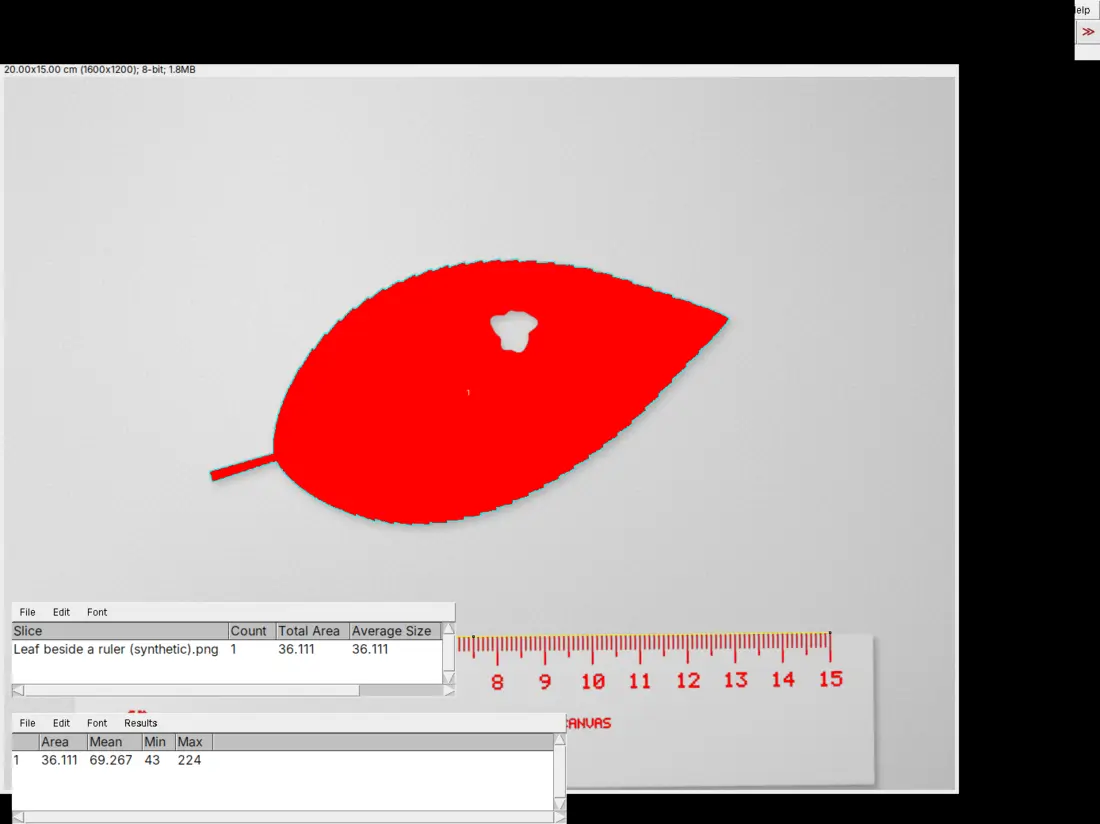
- Threshold the leaf. On white paper: Image › Type › 8-bit, then Image › Adjust › Threshold…. Pick a method (Default or Otsu work on most pictures), leave Dark background unticked because the leaf is darker than the paper, and check that the red covers the whole leaf and not its shadow. Leave the window open; you do not need to click Apply. (On a coloured background, use Color Threshold instead: see below.)
- Measure with Analyze › Analyze Particles…, with the settings in the table below.
- Read the result: the Area column has each leaf in cm², and the Summary window gives Count and Total Area. Lay the outlines over the picture and check that each one follows its leaf.
| Analyze Particles setting | What to choose |
|---|---|
| Size (cm^2) | A lower limit that drops specks and the ruler's marks, for example 0.5 to Infinity (or larger, for big leaves) |
| Circularity | 0.00–1.00 |
| Show | Outlines or Overlay, to check what was measured |
| Display results, Summarize | Ticked: one row per leaf, and the count and total area |
| Include holes | Ticked: holes inside the leaf count as leaf. Unticked: only the remaining tissue |
| Exclude on edges | Unticked, unless leaves cut by the frame should be left out |
On a colour picture: Image › Adjust › Color Threshold
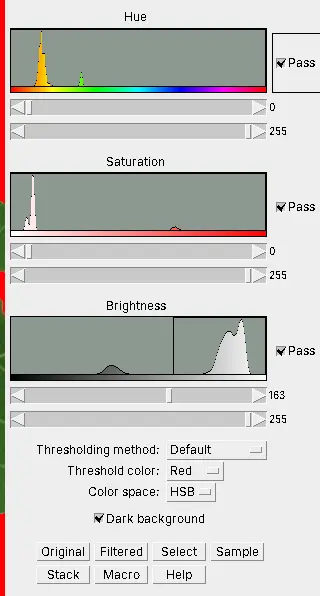
When the background is not plain white, or shadows get into the 8-bit threshold, threshold by colour instead of step 3. Open Image › Adjust › Color Threshold… on the colour picture and choose Color space HSB. Narrow the Hue sliders to the greens (and yellows, for older leaves) and raise the lower Saturation slider until the paper and the grey shadows drop out, with Pass ticked. Sample, which its own help calls experimental, sets the ranges from a selection drawn on the leaf. Then run Analyze Particles as in step 4.
Analyze Particles works directly on a colour picture thresholded with Color Threshold. You can also click Select in Color Threshold, then Edit › Selection › Create Mask, and run Analyze Particles on the mask, which is easier to check by eye.
Worked example: the practice leaf
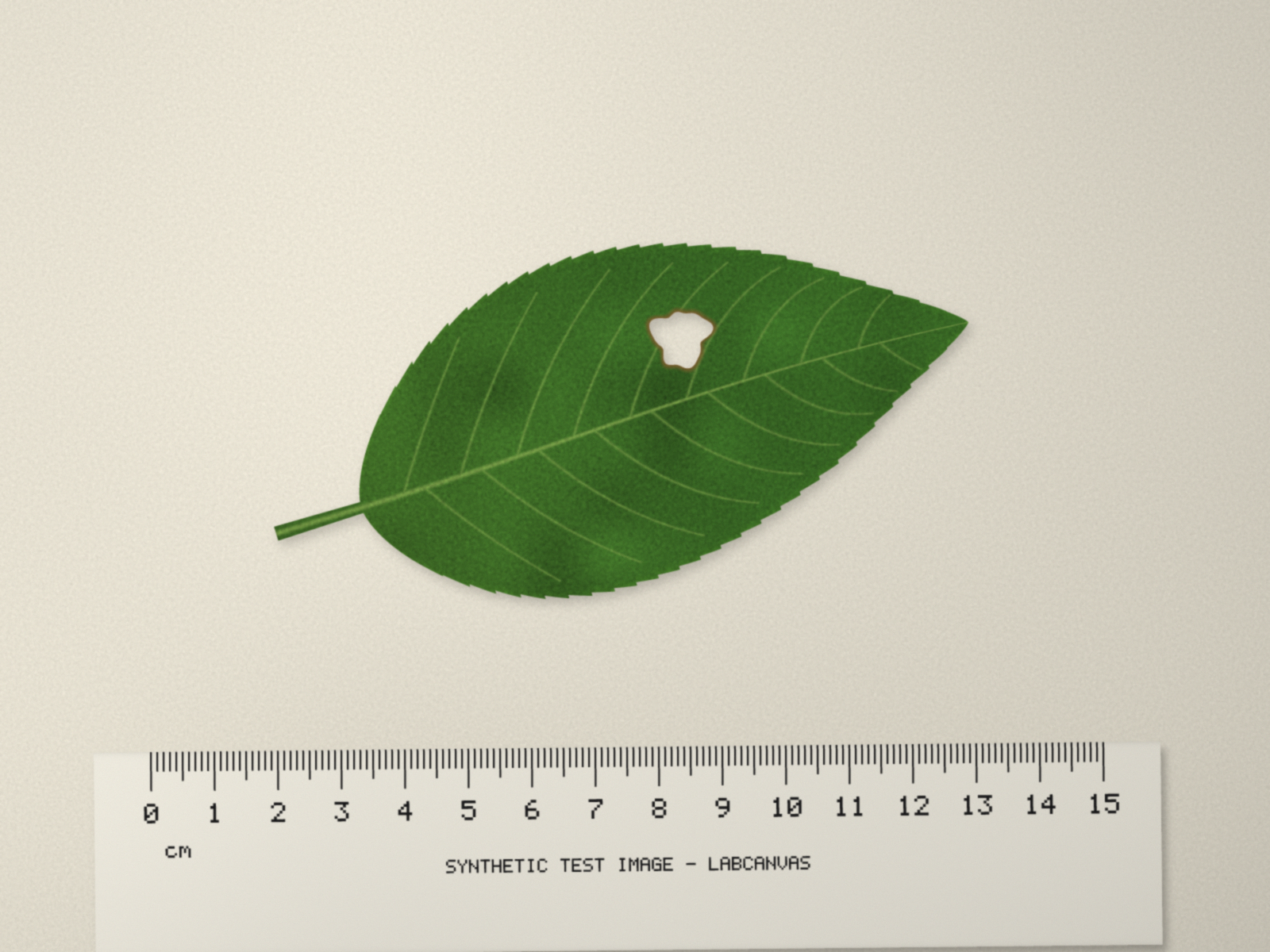
The practice picture is synthetic, drawn by a program and labelled as such on the ruler, not a photograph: a leaf with veins, a toothed margin and an insect hole, on paper beside a ruler, with soft shadows, a light gradient and camera noise. Download it as leaf-with-ruler.png (1600 × 1200 pixels, 2.5 MB) to try the steps. Setting the scale from 15 cm of the ruler gives 0.0125 cm per pixel (80 pixels per cm). With 8-bit, the Default threshold and Analyze Particles from 1 cm² with Include holes, ImageJ measures one leaf of 36.111 cm²; the leaf's true area, hole included, is 36.07 cm².
A range picked on green alone in Color Threshold leaves out browned tissue, such as the edge of the hole in the practice picture, so widen the hue range to the browns too.
Holes and insect damage: Include holes or not
A leaf with holes has two areas. The full leaf, holes included, is its size: tick Include holes. The tissue that is left, for photosynthesis or for scoring herbivory, leaves the holes out: untick it. Measure both: the difference is the area eaten, and the difference divided by the full area is the percent damage. Damage at the margin is different: an eaten edge is not a hole, so neither setting puts it back.
Many leaves in one photo
Lay them apart, set the scale once, and run Analyze Particles as above: every leaf gets its own row, numbered in the order ImageJ finds them (top to bottom), and Summarize gives the count and the total. Leaves that touch are measured as one, and no setting reliably separates two leaves that overlap, so move them apart rather than trying to split them in software.
Hundreds of photos
An ImageJ macro (Plugins › Macros › Record… while you do one photo, then Process › Batch › Macro… on a folder) repeats the steps unattended; each photo needs its own scale if the camera height changed. For hundreds of photos of the same kind, a dedicated tool may be faster. Easy Leaf Area (Easlon & Bloom 2014) is free, finds leaves by the colour ratios of each pixel, and compares them with a red calibration square of known area, so it needs no ruler line, and it batch-processes whole folders; its authors found its estimates from camera-phone photos more accurate than ImageJ estimates from flatbed scans.
Pitfalls
- Perspective. A camera that is not square to the paper gives a scale that changes across the picture. Hold it parallel, or use a scanner.
- Ruler and leaf at different heights. Set the scale only on a ruler lying on the same surface as the leaf.
- Shadows counted as leaf. Use diffuse light; with Color Threshold, raise the lower Saturation limit until grey shadows drop out.
- Pale or discoloured tissue left out. Pale veins, yellow patches, brown lesions and glare on a waxy leaf can fall outside a green range or a strict threshold, leaving gaps. Include holes (Fill holes) closes gaps inside the leaf, but not gaps at the edge; check the outline.
- Curled or folded leaves. Their projected area is smaller than the real one. Flatten them.
- Watershed on leaves. It splits leaves along their narrow parts. Leave it off.
- The wrong unit. A scale set in mm gives mm²: 1 cm² = 100 mm².
- The petiole. Decide whether it belongs to the leaf area and treat every leaf the same way.
Reporting it
A methods sentence to copy, with the parts in brackets filled in:
Leaves were photographed flat on white paper beside a ruler [with a phone camera held parallel to the paper / on a flatbed scanner at 300 dpi]. Leaf area was measured in [Fiji (ImageJ 1.54)]: the scale was set from [10] cm of the ruler (Analyze › Set Scale), leaves were segmented with [Image › Adjust › Color Threshold (HSB) / the Default threshold on the 8-bit image] and measured with Analyze Particles (minimum size [0.5] cm², holes [included / excluded]).
Cite ImageJ (Schneider et al. 2012) or Fiji (Schindelin et al. 2012), and Easy Leaf Area (Easlon & Bloom 2014) if you used it. Report leaf area per leaf or per plant as mean ± SD with n plants; for specific leaf area, divide the area by the leaf's dry mass.
Next: set the scale with a calibration image, or measure lengths and areas of anything else.
An easier way: measure leaf area from a phone photo in LabCanvas
LabCanvas Image Analysis opens a phone photo (JPEG, PNG, WebP) or a scan in the browser, so you can measure on the computer next to the bench or on a tablet, with nothing to install.
- Set the scale: draw a line along the ruler with the Line tool, then in Image › Scale type the Known distance, choose the Unit (cm) and click Set scale.
- Count › Count particles: Channel Brightness (R + G + B) / 3, threshold Default, objects Dark; the leaf turns red in the preview.
- Tick Fill holes to count holes as leaf (or leave it off), untick Separate touching objects (watershed), and set Size from to 1 cm² so the ruler's marks are left out.
- Click Count: every leaf is outlined, with its area in the Particles table and the total in the Summary row.
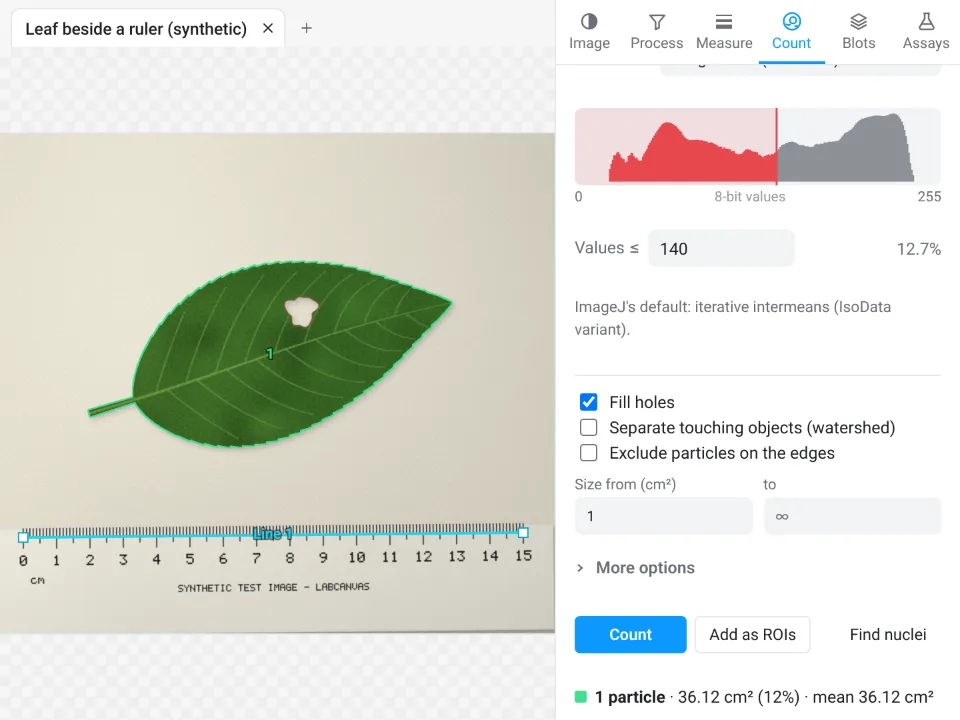
On the same practice picture, LabCanvas measures 36.12 cm² with the hole filled and 35.53 cm² without (the hole is 0.59 cm², 1.6% of the leaf), against 36.111 cm² in ImageJ with Include holes and a true 36.07 cm².
Why it is a good choice for leaf area:
- Phone to result at the bench: no install, on any computer or tablet.
- ImageJ's own steps: Set scale, a threshold and Analyze Particles, with the same Default method, plus Process › Colour threshold (click Pick a colour on the leaf) and a Pixel classifier for backgrounds a colour cannot separate.
- Many photos: Count › Batch gives one Summary row per photo, each with its own automatic threshold (set each one's scale from its own ruler first).
- Straight into Graphs: Send to Graphs plots the areas by treatment with the statistics. Copy and Send to Graphs are free with a LabCanvas account; downloading CSV files is part of LabCanvas Pro.
Open Image Analysis. ImageJ and Fiji are independent open-source projects; LabCanvas is not affiliated with them.
References
- Easlon HM, Bloom AJ (2014). Easy Leaf Area: automated digital image analysis for rapid and accurate measurement of leaf area. Applications in Plant Sciences 2(7), 1400033. doi:10.3732/apps.1400033
- Schneider CA, Rasband WS, Eliceiri KW (2012). NIH Image to ImageJ: 25 years of image analysis. Nature Methods 9, 671–675. doi:10.1038/nmeth.2089
- Schindelin J, Arganda-Carreras I, Frise E, et al. (2012). Fiji: an open-source platform for biological-image analysis. Nature Methods 9, 676–682. doi:10.1038/nmeth.2019
Frequently asked questions
How do I measure leaf area in ImageJ?
Photograph or scan the leaf flat on white paper next to a ruler. In ImageJ, draw a straight line along a known length of the ruler and set it with Analyze › Set Scale… (for example 10 cm). Convert to 8-bit and threshold the leaf with Image › Adjust › Threshold…, or use Image › Adjust › Color Threshold… on the colour picture. Then run Analyze › Analyze Particles… with a minimum size, Display results and Summarize: the Area column is the leaf area in cm².
Can I measure leaf area from a phone photo?
Yes, if the leaf lies flat, a ruler lies beside it in the same plane, and the phone is held square to the paper (parallel to it), so the scale is the same across the picture. Use soft, even light without shadows, keep the leaf near the centre of the frame where the lens distorts least, and set the scale from the ruler in every photo.
Should leaf area include holes from insect damage?
It depends on the question. The leaf's full size, for growth or allometry, includes the holes: tick Include holes in Analyze Particles. The tissue that is left, for photosynthesis or damage scoring, leaves them out. Measure both and the difference is the area eaten; divided by the full area, it is the percent damage.
How do I measure many leaves in one photo?
Lay them out so that they do not touch or overlap, set the scale once from the ruler, threshold, and run Analyze Particles with a minimum size that leaves out specks and the ruler's marks. Each leaf gets a row with its area, and Summarize gives the count and the total area. Leaves that touch are measured as one.
Why does my leaf area come out too large or too small?
Too large: a shadow beside the leaf, or a dark background, is above the threshold, or the scale was set on a ruler closer to the camera than the leaf. Too small: pale veins, yellow or brown patches or glare fall outside the threshold, the leaf is curled, or the scale was set in the wrong unit. Lay the outlines over the picture and look before you trust the number.
Is there a dedicated program for leaf area?
Easy Leaf Area (Easlon and Bloom 2014) is a free program made for it: it finds leaves by their colour and compares them with a red calibration square of known area, so no ruler scale is needed, and it batch-processes many photos. ImageJ and Fiji are general tools that measure leaf area with a threshold and a ruler.
Try it in LabCanvas
Every app is free to start in your browser. Create an account and begin.
Start Image Analysis free in your browserKeep reading
ImageJ vs LabCanvas Image Analysis: an honest comparison
ImageJ/Fiji or LabCanvas Image Analysis? Six everyday jobs done in both, six newer ones (macros, vendor files, 3D, StarDist, big images) and which to use.
How to use ImageJ: a beginner's tutorial for the 10 everyday jobs (2026)
How to use ImageJ and Fiji: get started, open an image, then 10 everyday jobs (scale, measure, threshold, count, background, blots) with exact menu paths.
How to set the scale and add a scale bar in ImageJ (with a calibration image to practise on)
Set the scale in ImageJ (Analyze › Set Scale) from a micrometer, scale bar or pixel size, add a scale bar, and practise on a free calibration image.