Install ImageJ or Fiji on Windows 10 and 11
Download and install Fiji or ImageJ on Windows 10 and 11: the right zip, where to unzip it (not Program Files), Java, memory, and where files go.
Contents
To install Fiji (ImageJ with plugins) on Windows 10 or 11, download Fiji Latest for Windows x86-64 from the Fiji download page (or arm64 for an Arm laptop), right-click the zip and choose Extract All… into a folder in your user space such as C:\Users\yourname\Fiji, not Program Files. Open the folder and double-click the Fiji launcher. There is no installer, Java 21 is included, and Fiji starts with 75% of your RAM as its memory limit.
Checked in November 2026 against the Fiji download page and Fiji's launcher documentation. Download pages change; the official one is imagej.net/software/fiji/downloads.
Which download for your PC
To see your processor, open Settings › System › About and read System type: "x64-based processor" is a usual Intel or AMD PC; "ARM-based processor" is an Arm laptop.
| Download | PC | Java | Choose it when |
|---|---|---|---|
| Fiji Latest, Windows x86-64 (fiji-latest-win64-jdk.zip) | Intel or AMD, Windows 10 or later | Java 21, included | Almost always; the Fiji team recommends Latest for most users |
| Fiji Latest, Windows arm64 (fiji-latest-win-arm64-jdk.zip) | Arm (Snapdragon and similar), Windows 10 or later | Java 21, included | An Arm laptop |
| Fiji Stable, Windows x86-64 (fiji-stable-win64-jdk.zip) | Any 64-bit PC, back to Windows XP | Java 8, included | You need Java 8 or an old plugin that breaks on Java 21 |
| Fiji Stable, Windows x86-32 (fiji-stable-win32-jdk.zip) | Old 32-bit Windows | Java 8 (32-bit), included | Only on a 32-bit system; very little memory |
| Portable (no JDK) | Any | Bring your own Java | Managed PCs where IT installs Java centrally |
| ImageJ 1.x for Windows (imagej.net/ij/download.html) | 64-bit Windows | Java, included | You want plain ImageJ without Fiji's plugins |
Each Fiji download is offered from three servers (US, UK and France) with the same files. Most people should take Fiji rather than plain ImageJ: it adds Bio-Formats for microscope files, TrackMate, Cell Counter, Coloc 2 and an updater. See Fiji vs ImageJ.
How to install Fiji on Windows 10 or 11, step by step
- Download the right zip from imagej.net/software/fiji/downloads.
- Choose a folder in your user space, for example C:\Users\yourname\Fiji or a Programs folder in your user profile. Not C:\Program Files: see below.
- Extract the zip: right-click it in File Explorer, Extract All…, choose that folder and click Extract. Do not run Fiji from inside the zip: Explorer shows a zip like a folder, but programs started from there cannot find their files.
- Start Fiji: open the extracted folder and double-click the Fiji launcher (the application with the Fiji icon; its name ends in windows-x64, or windows-arm64 on an Arm PC). The first start takes a little longer.
- Pin it: right-click the launcher and pin it to Start or the taskbar (on Windows 11, under Show more options if you do not see it), so you do not have to find the folder again.
- Update it: Help › Update… runs the Fiji Updater. Restart Fiji when it asks.
If Microsoft Defender SmartScreen shows "Windows protected your PC" on the first start, it means the program is not yet known to Microsoft's reputation service, not that it is harmful. Check that the zip came from the official download page, then click More info and Run anyway.
Why not C:\Program Files?
The Fiji download page carries a warning about this. Modern Windows does not let normal programs write inside C:\Program Files and other system folders. Fiji writes into its own folder all the time: the Updater replaces files, new plugins go into the plugins folder, and the memory setting is saved in the launcher's configuration. In Program Files those writes are refused, so updates fail quietly and settings are lost.
If you already put Fiji there, move the whole folder to C:\Users\yourname\Fiji and start it from the new place. Nothing else needs to change.
Where ImageJ and Fiji keep their files on Windows
| What | Where |
|---|---|
| The program, plugins, macros, scripts, lookup tables | Inside the Fiji folder you extracted: plugins, macros, scripts, luts, jars |
| Fiji's launcher settings, including the memory limit | config\jaunch\fiji.cfg inside the Fiji folder |
| ImageJ's preferences (last folders, tool settings, options) | IJ_Prefs.txt in the .imagej folder of your user profile (C:\Users\yourname\.imagej) |
| Plain ImageJ 1.x memory setting | ImageJ.cfg in the ImageJ folder |
| Your images and results | Wherever you save them; Fiji does not move them |
To reset ImageJ's options, use Edit › Options › Reset… and restart. To uninstall Fiji completely, delete its folder (and, if you like, the .imagej folder in your user profile).
How much memory to give ImageJ or Fiji
ImageJ can only use the memory Java was given at start-up. A stack bigger than that fails with an "out of memory" message even on a PC with plenty of RAM.
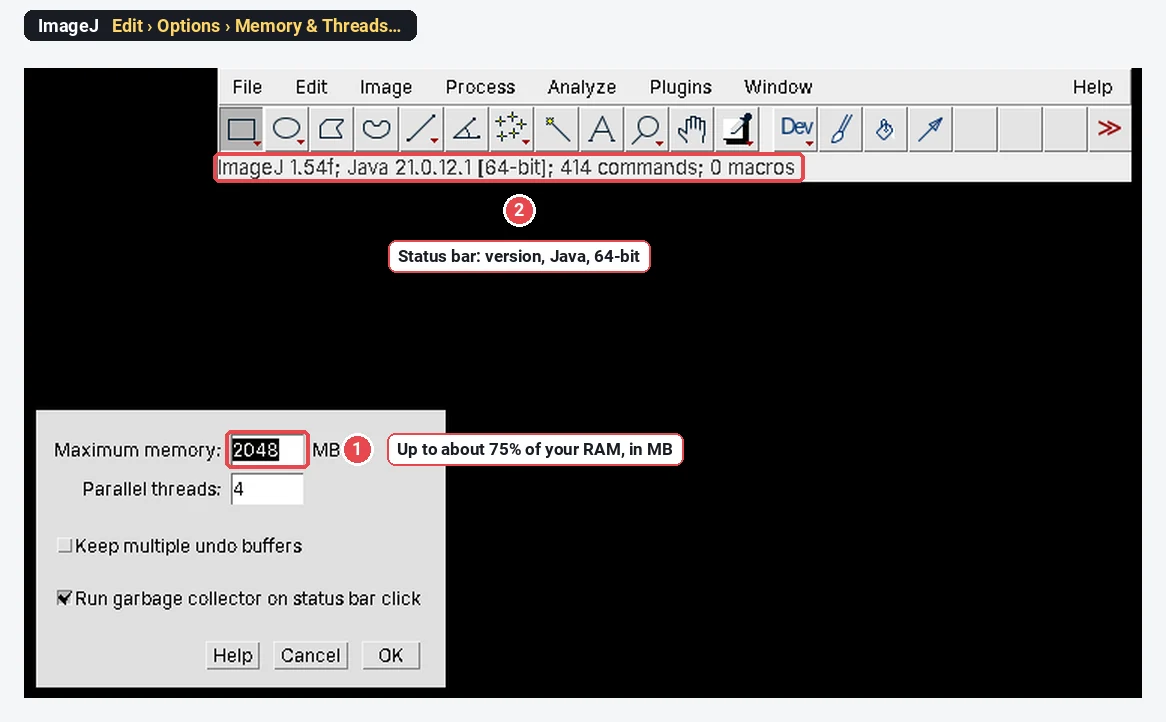
- Fiji Latest starts with 75% of your RAM by default, which suits most people.
- To change it, use Edit › Options › Memory & Threads…, type Maximum memory in MB, click OK and restart. Fiji saves it as max-heap in config\jaunch\fiji.cfg; plain ImageJ 1.x saves it in ImageJ.cfg (which is why both need a folder they can write to).
- For a single session, open a Command Prompt in the Fiji folder and run
fiji.bat --mem=8g. - Keep the limit below about three quarters of your RAM, so that Windows and your other programs keep enough.
Problems on Windows, and the fixes
- Fiji will not update, or forgets settings. It is in Program Files or another protected folder. Move it to your user space.
- Fiji does not start from the zip. Extract it first (step 3).
- Tiny menus and text on a high-resolution screen. Make sure you run a 64-bit Fiji or ImageJ. For plain ImageJ 1.x, right-click its launcher, Properties › Compatibility › Change high DPI settings, and try the scaling override on and off; the ImageJ wiki reports that some screens need it on and others off.
- "Out of memory". Raise the limit as above, or open big files as a virtual stack (File › Import › TIFF Virtual Stack…, or Use virtual stack in the Bio-Formats importer).
- Microscope files will not open in plain ImageJ. Plain ImageJ needs Bio-Formats added; Fiji has it. See how to open .czi and .nd2 files.
Using ImageJ on Windows
Once it runs, ImageJ looks and works the same as on any computer: the menus (File, Edit, Image, Process, Analyze, Plugins, Window, Help) and the toolbar in one window, images in their own windows. The keyboard shortcuts use Ctrl (Ctrl O opens, Ctrl M measures, Ctrl Shift P opens Image › Properties).

Next steps: setting the scale, measuring length and area, counting cells, and the rest of how to use ImageJ.
Pitfalls
- Unofficial download sites. "Free download" portals often carry old versions or bundled extras. Use imagej.net or the mirrors it links.
- Two copies of Fiji. You update one and start the other. Keep one folder, and one shortcut to it.
- A 32-bit Fiji on a 64-bit PC. It works, but with very little memory. Use the 64-bit download.
- Installing Java for Fiji. Not needed: Fiji uses the Java inside its own folder.
- Running as administrator to "fix" updates. Moving Fiji out of Program Files is the real fix.
Citing it
ImageJ and Fiji are free, but cite them in your methods: Schneider et al. (2012) for ImageJ, Schindelin et al. (2012) for Fiji, with the version from Help › About ImageJ. How to cite ImageJ and Fiji has the details.
Can't install anything? Measure in LabCanvas instead
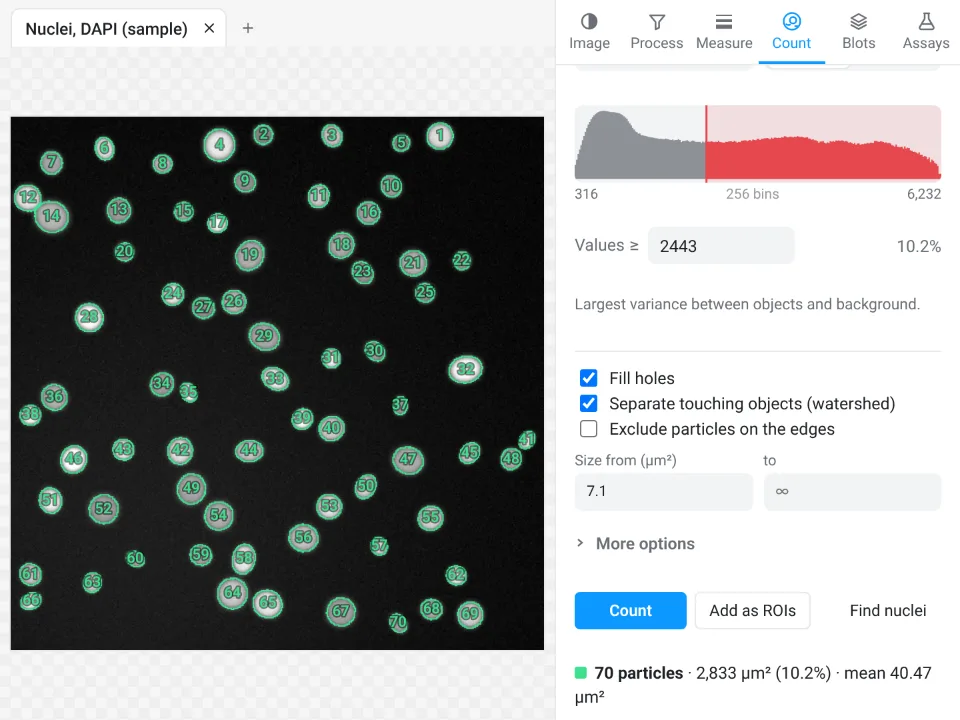
On a locked-down university or hospital PC where you cannot unzip programs into your profile, or when you only need to measure a few images, LabCanvas Image Analysis runs in Edge, Chrome or Firefox with nothing to install and no Java.
- Open Image Analysis in the browser and sign in (a free LabCanvas account).
- Drop your TIFF on the window (the pixel size comes with it), or click a sample.
- Measure drawn regions in the Measure tab (Measure, Set measurements), or count in Count › Count particles.
- Copy the table to Excel, or Send to Graphs.
Why it is a good choice on a managed PC:
- Nothing to install: no zip, no Java, no folder permissions, no Updater; it runs on any computer or tablet.
- ImageJ's names and measurements: an ROI list with Measure and Set measurements, Analyze Particles with watershed, sixteen threshold methods, rolling-ball background subtraction, Z Project, Find Maxima and a cell counter; it opens ImageJ .roi files and RoiSet.zip.
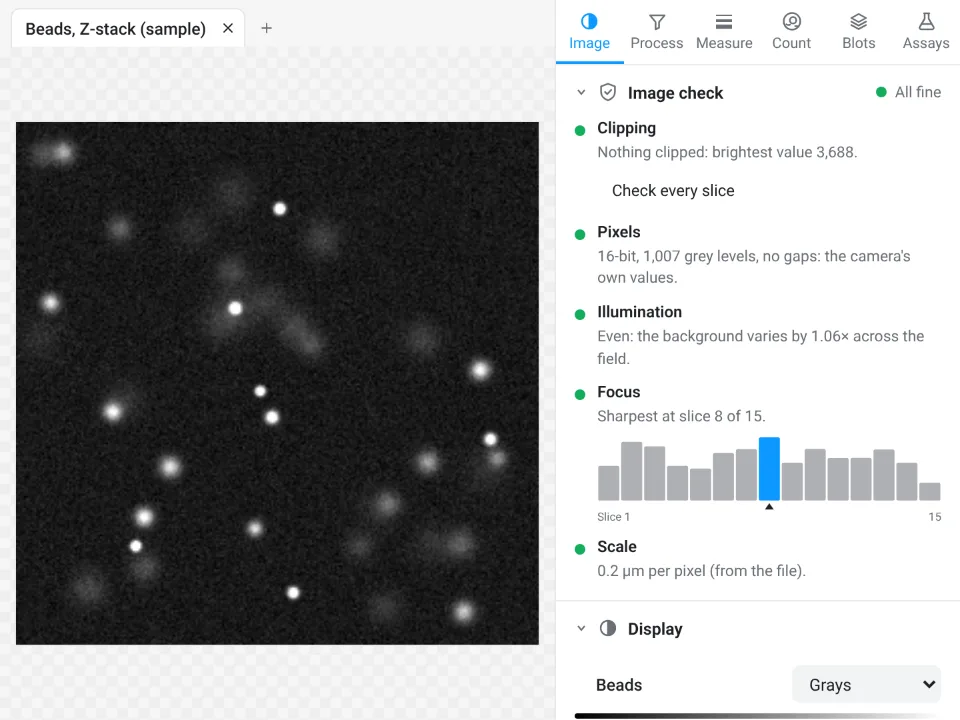
- An image check that flags clipped pixels, JPEG compression and uneven light before you measure.
- Free with a LabCanvas account: measuring, Copy and Send to Graphs; downloading files is part of LabCanvas Pro. Every measurement is checked in more than 4,000 automated tests.
It is not a full replacement: there is no macro language or plugin system, no 3D object analysis or deep-learning segmentation, and microscope-maker files (.czi, .nd2, .lif) need exporting as OME-TIFF first. For those jobs, install Fiji as above. ImageJ and Fiji are independent open-source projects; LabCanvas is not affiliated with them.
References
- Schindelin J, Arganda-Carreras I, Frise E, et al. (2012). Fiji: an open-source platform for biological-image analysis. Nature Methods 9, 676–682. doi:10.1038/nmeth.2019
- Schneider CA, Rasband WS, Eliceiri KW (2012). NIH Image to ImageJ: 25 years of image analysis. Nature Methods 9, 671–675. doi:10.1038/nmeth.2089
Frequently asked questions
Which Fiji do I download for Windows 11?
Fiji Latest for Windows x86-64 (fiji-latest-win64-jdk.zip) on a usual Intel or AMD PC, or Windows arm64 (fiji-latest-win-arm64-jdk.zip) on an Arm laptop such as a Snapdragon Copilot+ PC. Both need Windows 10 or later and include Java 21.
Does Fiji need an installer on Windows?
No. Fiji is a portable application: you unzip it into a folder in your user space, such as C:\Users\yourname\Fiji, and double-click the launcher. Uninstalling is deleting the folder.
Why should I not put Fiji in Program Files?
Windows does not let normal programs write inside C:\Program Files, so Fiji cannot update itself, save new plugins or keep its memory setting there. The Fiji download page recommends a folder in your user space, such as C:\Users\yourname\Fiji.
Do I need to install Java for ImageJ on Windows?
No. Fiji Latest bundles Java 21 and Fiji Stable bundles Java 8; the ImageJ 1.x Windows download also comes with Java. Only the portable "no JDK" download expects you to provide Java.
How do I increase the memory for ImageJ on Windows?
Edit › Options › Memory & Threads, type the Maximum memory in MB, click OK and restart ImageJ. Fiji starts with 75% of your RAM by default. Keep the setting below about three quarters of the RAM.
Is there a 32-bit version of Fiji?
Only Fiji Stable (Java 8) still has a 32-bit Windows download. A 32-bit Java can use little memory, so use the 64-bit version on any computer from the last decade.
Try it in LabCanvas
Every app is free to start in your browser. Create an account and begin.
Start Image Analysis free in your browserKeep reading
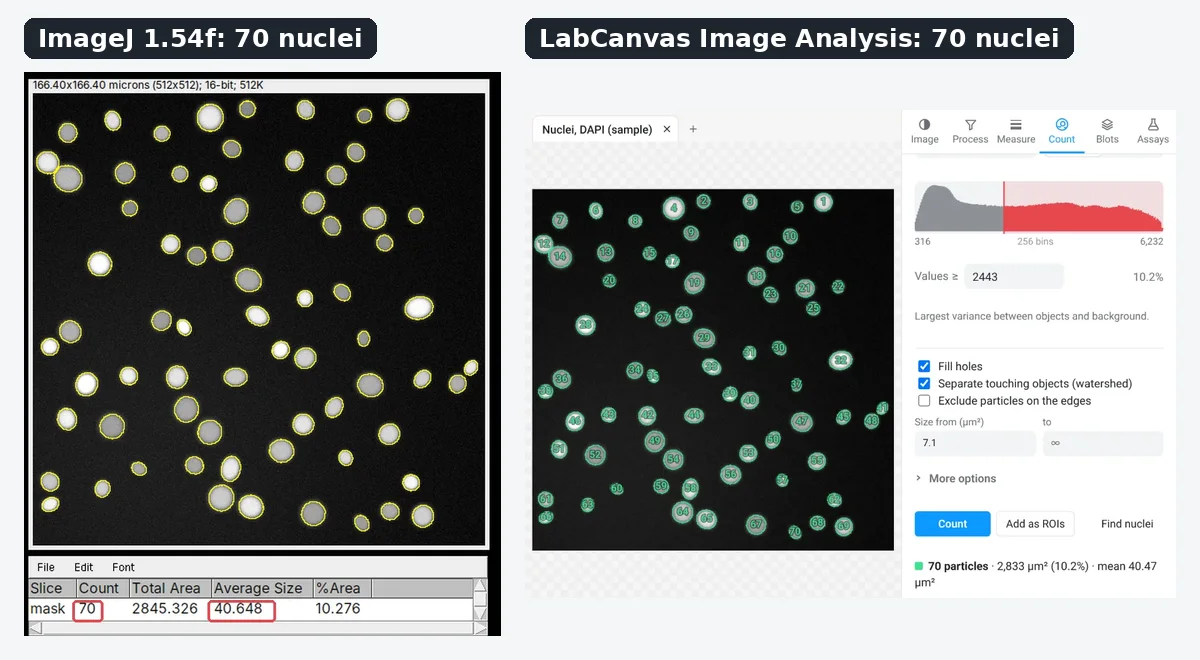
ImageJ vs LabCanvas Image Analysis: an honest comparison
ImageJ/Fiji or LabCanvas Image Analysis? Six everyday jobs done in both, six newer ones (macros, vendor files, 3D, StarDist, big images) and which to use.
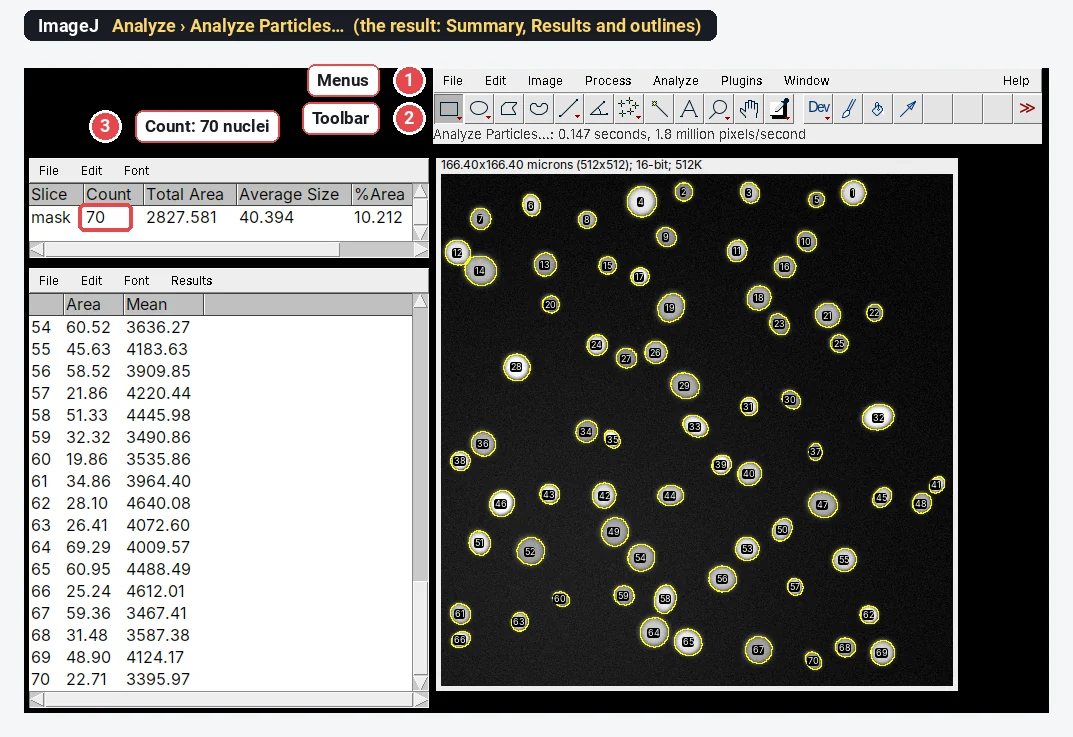
How to use ImageJ: a beginner's tutorial for the 10 everyday jobs (2026)
How to use ImageJ and Fiji: get started, open an image, then 10 everyday jobs (scale, measure, threshold, count, background, blots) with exact menu paths.
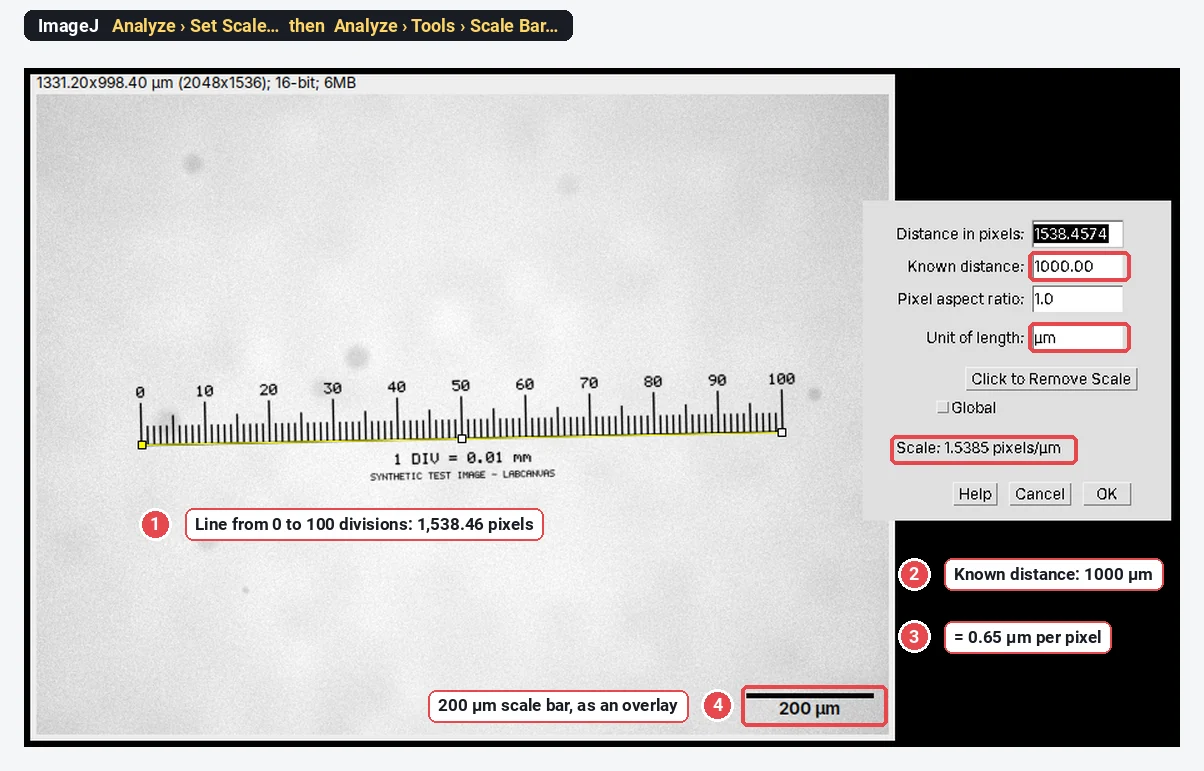
How to set the scale and add a scale bar in ImageJ (with a calibration image to practise on)
Set the scale in ImageJ (Analyze › Set Scale) from a micrometer, scale bar or pixel size, add a scale bar, and practise on a free calibration image.