Rolling-ball background subtraction in ImageJ: how to choose the radius
Subtract background in ImageJ: Process › Subtract Background, a rolling ball radius at least the largest object's, Light background off for fluorescence.
Contents
To subtract background in ImageJ, open the image and choose Process › Subtract Background…, set Rolling ball radius to at least the radius of the largest object in pixels (two or three times it is safer), leave Light background unticked for fluorescence, tick Preview to check, and click OK. ImageJ rolls a ball of that radius under the intensity surface and subtracts whatever the ball can reach, so slow changes in the background go and objects smaller than the ball stay.
Rule of thumb: radius ≥ radius of the largest object that is not background. Too small, and the objects themselves are subtracted.
Below: the full steps in ImageJ and Fiji, a grid of four radii on the same image, what a too-small radius does, line profiles before and after, and the Light background trap. Every ImageJ picture here is ImageJ 1.54f running on our synthetic nuclei sample (70 nuclei on a deliberately uneven background, 0.325 µm per pixel); none is a real lab image.
What does Subtract Background actually do?
Picture the image as a landscape, with brightness as height. Bright nuclei are hills; an uneven background is a gently tilted plain. The rolling-ball method, described by Stanley Sternberg in 1983, rolls a ball along the underside of that landscape. Wherever the ball can touch, the surface is called background. Hills narrower than the ball are out of its reach, so they survive; slopes wider than the ball are followed, so they are removed.
Two consequences follow straight from that picture:
- The radius sets what counts as background. Anything wider than the ball is background; anything narrower is signal.
- The radius is in pixels. The ball knows nothing of microns. A nucleus that is 33 pixels wide at 0.325 µm per pixel is 66 pixels wide with twice the magnification.
Sliding paraboloid replaces the ball with a paraboloid of the same curvature. It copes a little better with steep background changes and with very bright objects. Disable smoothing turns off the 3 × 3 mean that ImageJ applies before finding the background; with smoothing off, the background can never come out higher than the image itself.
How do I subtract background in ImageJ (or Fiji)?
Subtract Background is part of ImageJ 1.x, so the steps are the same in Fiji.
- Open the image (File › Open…). Work on a copy if you need the raw values later: Image › Duplicate… (Ctrl Shift D).
- Measure your biggest object. Draw a line across the largest nucleus, cell or particle and press Ctrl M. Read the length in pixels (or remove the scale first). Halve it: that is the smallest radius you can use.
- Process › Subtract Background…. Type the Rolling ball radius in pixels.
- Set Light background: ticked for dark objects on a bright background (brightfield, histology, blots), unticked for fluorescence.
- Leave Create background (don't subtract), Sliding paraboloid and Disable smoothing unticked for a first try.
- Tick Preview and look at the image. The background should be even and dark; the objects should look like they did before, only on a flat floor.
- Click OK. For a stack, ImageJ asks whether to process all slices.
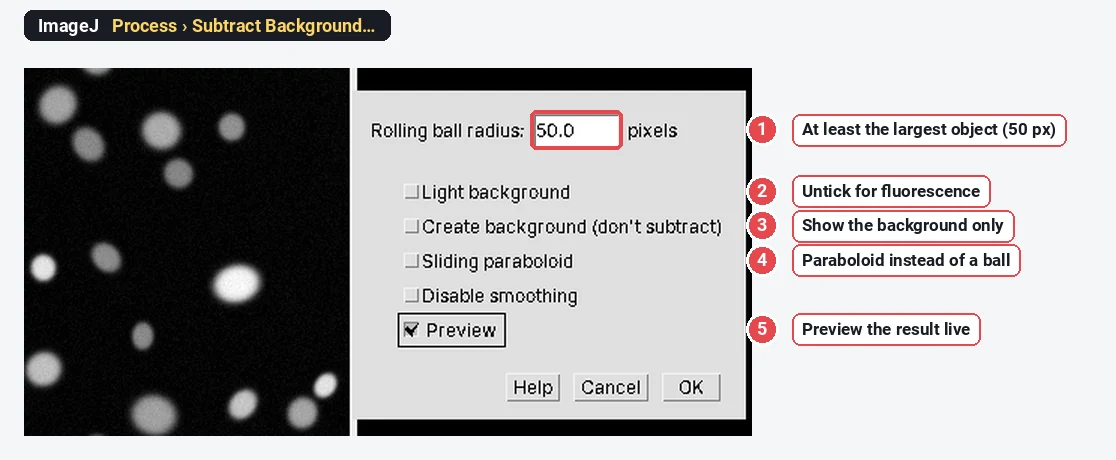
For RGB images there is one more box, Separate colors, which treats red, green and blue separately; without it, ImageJ works on the brightness and keeps the hues. In a macro the same call is:
run("Subtract Background...", "rolling=50");Add light, sliding, create or disable to the options string for the boxes. A macro starts from all boxes unticked, unlike the dialog.
How do I choose the rolling ball radius?
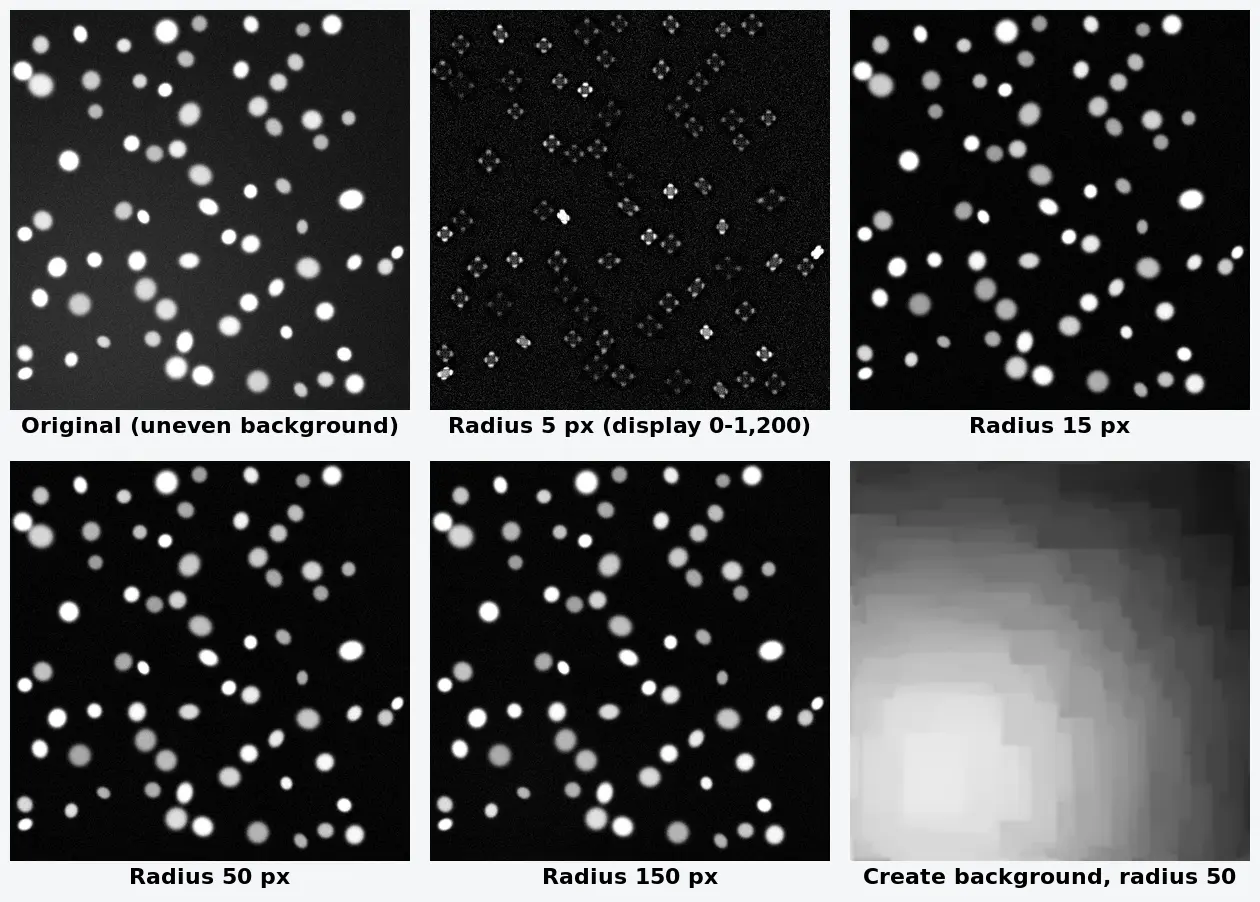
Start from the objects, not from the default of 50. On the nuclei sample, Analyze Particles on the thresholded image gave the largest single nucleus a Feret diameter of 33.2 pixels (about 10.8 µm), so its radius is about 16 pixels. That makes 16 the floor. We ran the same image at four radii:
The numbers, measured in ImageJ on the background between the nuclei (left and right thirds of the image) and inside the nuclei:
| Radius | Background, left third | Background, right third | Mean inside the nuclei | Verdict |
|---|---|---|---|---|
| Original | 944.7 | 733.1 | 3,974.8 | 1.3× brighter on the left |
| 5 px | 60.2 | 60.0 | 238.6 | Flat, but the nuclei are gone |
| 15 px | 80.3 | 81.8 | 3,124.3 | Flat; the biggest nuclei lose a little |
| 50 px | 92.0 | 92.1 | 3,178.7 | Flat, nuclei intact |
| 150 px | 114.8 | 97.5 | 3,197.6 | Part of the slope left |
| Sliding paraboloid, 50 px | 159.9 | 153.7 | 3,253.4 | Flat, a slightly higher floor |
Three things to read from the table:
- Too small destroys signal. At 5 pixels the mean inside the nuclei fell from 3,179 to 239. The background is beautifully flat, which is why a too-small radius is easy to miss if you only look at the background.
- Too large leaves the slope. At 150 pixels the left third is still 17 units higher than the right. The ball is too big to follow the bend in the background.
- The floor is not zero. After subtraction the background sits around 90, not 0. The ball rests on the low points of the noise, so the average background stays about one noise level above them. That is normal.
So the practical rule: the radius at least as large as the largest object's radius, and in practice two to three times it. Going a little higher costs little; going lower costs signal.
Check the radius with Create background
Tick Create background (don't subtract) to see what the ball found (the last panel of the grid). The background image must be smooth. If you can see the outlines of your objects in it, the ball reached into them: the radius is too small.
What does a radius that is too small do to my objects?
It hollows them out. When the ball is smaller than an object, it rolls up inside it, the inside is classed as background and subtracted, and only the rim survives. In ImageJ, which builds its ball from a coarse grid of points, the rim survives as a broken ring, often as four bright points.
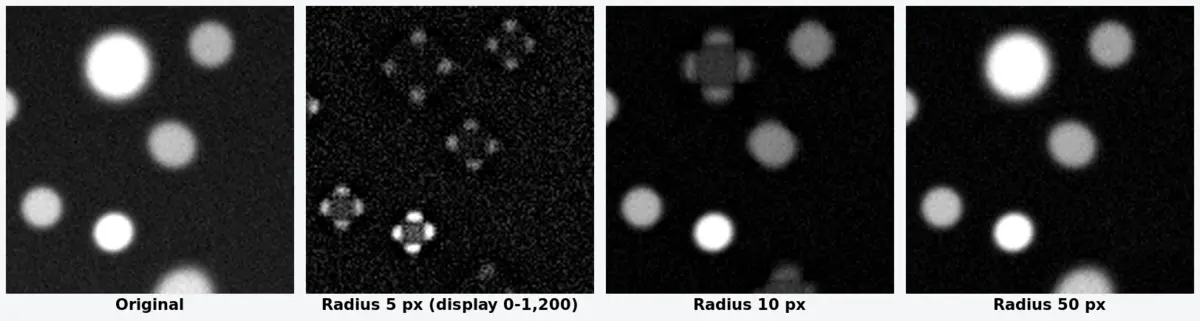
Radius 10 is the treacherous case. Small nuclei come through unharmed, so the image looks fine at a glance, while the large ones lose most of their signal. That biases any size or intensity comparison against big cells. Zoom in on your largest object every time you set the radius.
Line profiles before and after
A line profile (Analyze › Plot Profile, Ctrl K) shows the background more honestly than the image does, because your eye adapts to slow brightness changes. We drew one line from the bright lower left to the dim upper right of the sample, 205 µm long, and plotted it before and after radius 50, on the same y-axis:
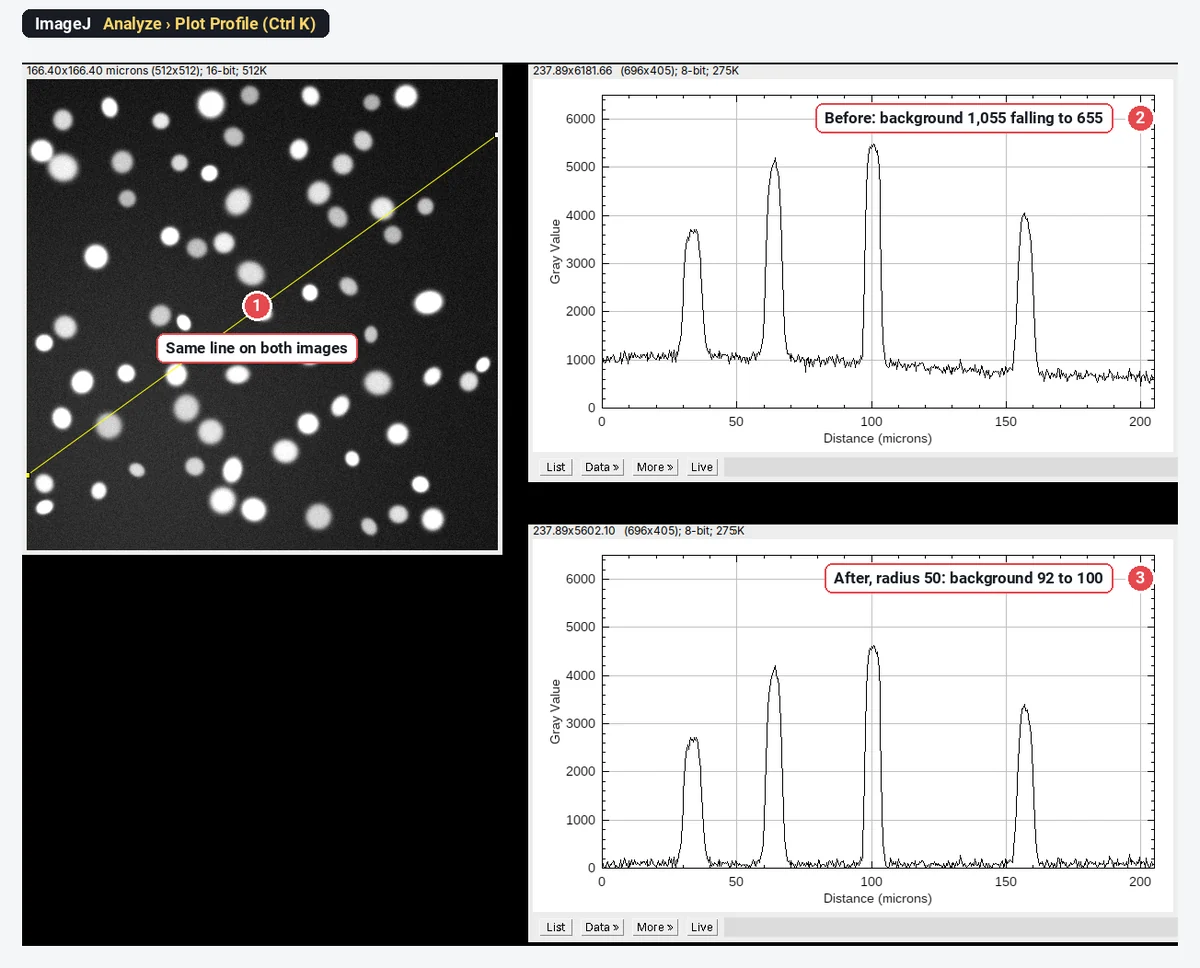
The peaks keep their height above the floor: the first nucleus on the line peaks at 3,715 on a floor of about 1,055 before (2,660 above it) and at 2,714 on a floor of about 90 after. That is what correct background subtraction looks like: the floor moves, the objects do not. More on profiles in Plot Profile in ImageJ.
The Light background trap
Light background tells ImageJ that the objects are darker than the background, so the ball rolls over the top instead of underneath. On a fluorescence image that is exactly wrong. In ImageJ 1.54f the box is ticked the first time the dialog opens and then remembers your last choice, so a fresh install, or a colleague's last blot, can leave it on.
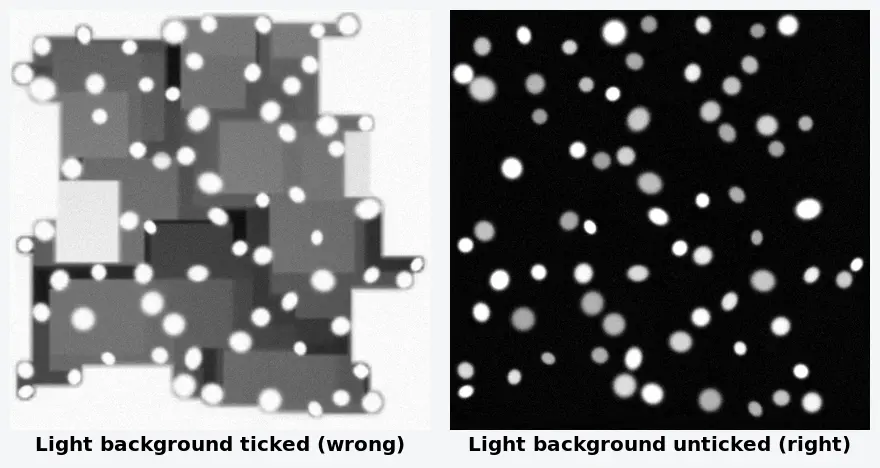
You will not miss a result like the left one, but a milder version (a dim image with a light background) can slip through. Glance at the box before you click OK.
When should I not subtract the background?
- When the unevenness multiplies the signal. Uneven illumination dims the objects and the background together: a nucleus in a corner at 70% of the light is 70% as bright. Subtraction fixes the floor but not the objects. For intensity comparisons across the field, use a flat-field correction (divide by an image of a uniform fluorescent slide) instead of, or before, subtraction.
- When the "background" is signal. A diffuse cytoplasmic stain or a haze of out-of-focus light from the cell you are measuring is part of what you want to quantify. A ball smaller than the cell removes it.
- On blots. Band background is better handled lane by lane (a baseline under each peak); see western blot quantification.
- When you measure against a background ROI anyway. CTCF-style measurements (integrated density minus area × mean background) already correct for a flat local background; subtracting first and correcting again removes it twice. See measuring fluorescence intensity.
Subtracting before thresholding, counting or segmenting is almost always worth it: a flat floor is what lets one global threshold work across the whole field (see ImageJ threshold methods compared).
Pitfalls
- Radius below the largest object's radius. Hollow or cross-shaped objects. Zoom in on the biggest one.
- Same radius after changing magnification. The radius is in pixels: double the magnification, double the radius.
- Light background left ticked on fluorescence.
- Subtracting twice. Once in the image, once again with a background ROI.
- Different radii for images you compare. Use one radius for the whole experiment and state it.
- Thresholding the original, measuring the subtracted copy (or the other way round) without meaning to. Keep track of which image the Results table came from.
- 8-bit clipping. Subtraction on an 8-bit image can push dim pixels to 0. Work in 16 or 32 bits if you will measure faint signal.
Reporting it
A methods sentence to copy:
Background was subtracted in [Fiji (ImageJ 1.54f)] with the rolling-ball algorithm (Process › Subtract Background; radius [50] pixels, [16.25] µm, [light background off, smoothing on]), applied identically to all images before measurement.
Give the radius in pixels and microns, say whether you used the sliding paraboloid, and cite ImageJ or Fiji. For thousands of files, record the step with Plugins › Macros › Record… and run it with Process › Batch › Macro…, so every image gets the same radius.
An easier way: subtract background in LabCanvas
LabCanvas Image Analysis has the same rolling ball in the browser, with nothing to install. In the Process tab, open Background and filters and choose Background:
- Set Rolling ball radius (the hint reminds you: at least the radius of the largest object that is not background).
- Tick Light background only for dark objects on a light background, as blots and brightfield. Unlike ImageJ's dialog, it starts unticked.
- Sliding paraboloid and Smooth first (the 3 × 3 mean that ImageJ applies by default) are there as in ImageJ.
- Preview shows the background and the result for the plane on screen; then Subtract background, or Background as image (ImageJ's Create background) to check the radius.
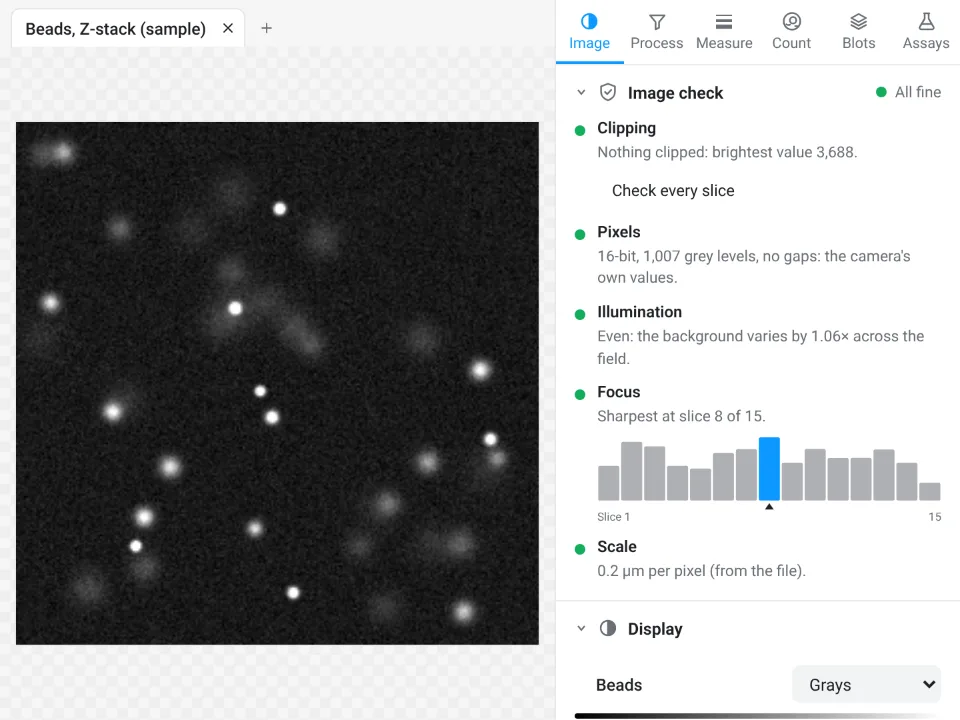
Before you subtract anything, the image check reports how much the background varies across the field and warns above 1.3×; on the bead Z-stack above it is 1.06×, so nothing needs correcting.
Why it is a good choice for background subtraction:
- ImageJ's own algorithm and names: rolling ball, sliding paraboloid, Light background, smoothing and Create background, so your methods sentence stays the same.
- The Light background trap removed: it starts unticked, and every step is undoable.
- It tells you when to subtract: the image check measures the unevenness before you measure anything.
- Nothing to install, and a Methods line under every results table lists the processing steps applied. The background step, measuring, Copy table, Send to Graphs and Add to a figure are free with a LabCanvas account; downloading the processed TIFF is part of LabCanvas Pro.
Fiji remains the better tool for a macro over thousands of files, or for files in a maker's format that only Bio-Formats reads. Every measurement is validated in more than 4,000 automated tests. Open Image Analysis. ImageJ and Fiji are independent open-source projects; LabCanvas is not affiliated with them.
References
- Sternberg SR (1983). Biomedical image processing. Computer (IEEE) 16(1), 22–34. doi:10.1109/MC.1983.1654163
- Schneider CA, Rasband WS, Eliceiri KW (2012). NIH Image to ImageJ: 25 years of image analysis. Nature Methods 9, 671–675. doi:10.1038/nmeth.2089
- Schindelin J, Arganda-Carreras I, Frise E, et al. (2012). Fiji: an open-source platform for biological-image analysis. Nature Methods 9, 676–682. doi:10.1038/nmeth.2019
Frequently asked questions
What rolling ball radius should I use in ImageJ?
At least the radius of the largest object that is not background, in pixels, and usually two or three times that. On our nuclei sample the largest nucleus is about 33 pixels across (radius about 16), and 50 pixels flattened the background without touching the nuclei. Check with Preview, or with Create background, that the background shows no trace of your objects.
Is the rolling ball radius in pixels or microns?
In pixels, whatever scale the image has. With 0.325 µm pixels, a radius of 50 pixels is 16.25 µm. If you change objective or binning, the same structures span a different number of pixels, so the radius has to change with them.
Should I tick Light background?
Only for dark objects on a bright background: brightfield, histology, blots and gels. For fluorescence leave it unticked. In ImageJ 1.54f the box is ticked the first time the dialog opens and then remembers your last choice, so check it every time.
What is the difference between rolling ball and sliding paraboloid?
Both estimate the background from below the image. The rolling ball uses a ball (for large radii ImageJ works on a shrunken copy of the image to save time); the sliding paraboloid uses a paraboloid of the same curvature in several directions, which follows steep background changes and very bright objects a little better. On even-shaped backgrounds they give nearly the same result.
Why do my objects look hollow after Subtract Background?
The radius is smaller than the objects, so the ball fits inside them and the inside is treated as background. Only the rim, or a few points of it, survive. Increase the radius to at least the radius of the largest object and run it again on the original image.
Does background subtraction change my intensity measurements?
Yes, that is the point: it removes the slowly varying offset under every object, so means and integrated densities fall by the local background. Apply the same radius to every image you compare, report it, and measure on the subtracted copy, never on a copy you also scaled for display.
Is there an easier way to subtract background without installing ImageJ?
Yes: LabCanvas Image Analysis has the same rolling ball and sliding paraboloid in the browser, under Process › Background and filters, with a preview; see the last section of this guide.
Try it in LabCanvas
Every app is free to start in your browser. Create an account and begin.
Start Image Analysis free in your browserKeep reading
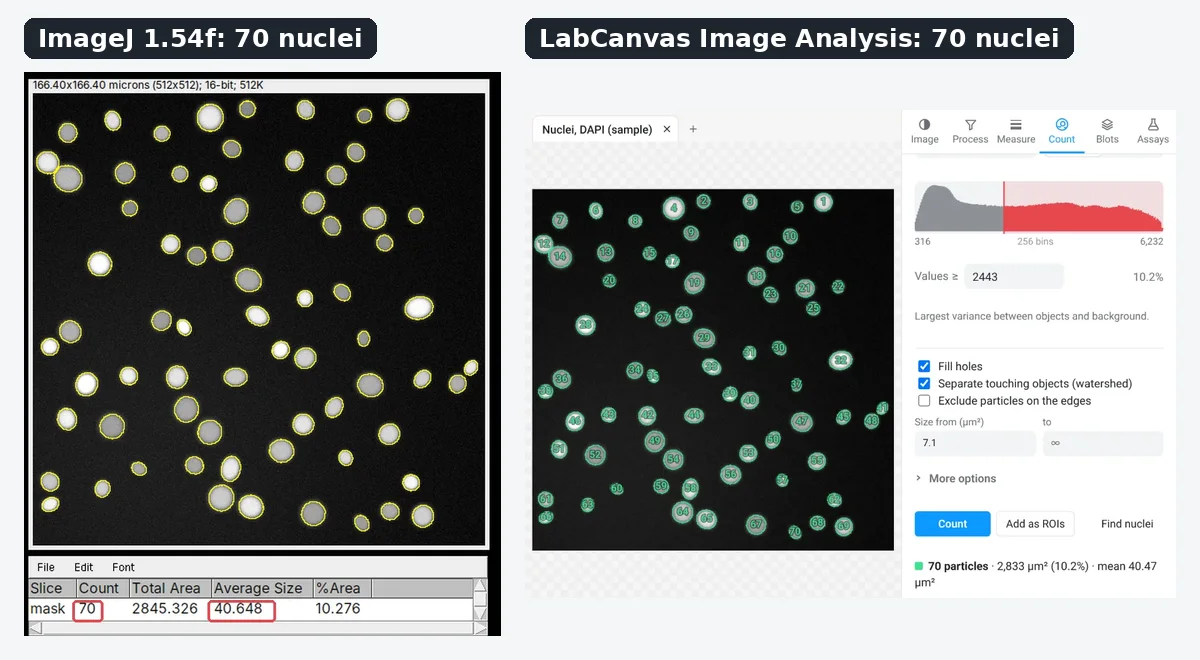
ImageJ vs LabCanvas Image Analysis: an honest comparison
ImageJ/Fiji or LabCanvas Image Analysis? Six everyday jobs done in both, six newer ones (macros, vendor files, 3D, StarDist, big images) and which to use.
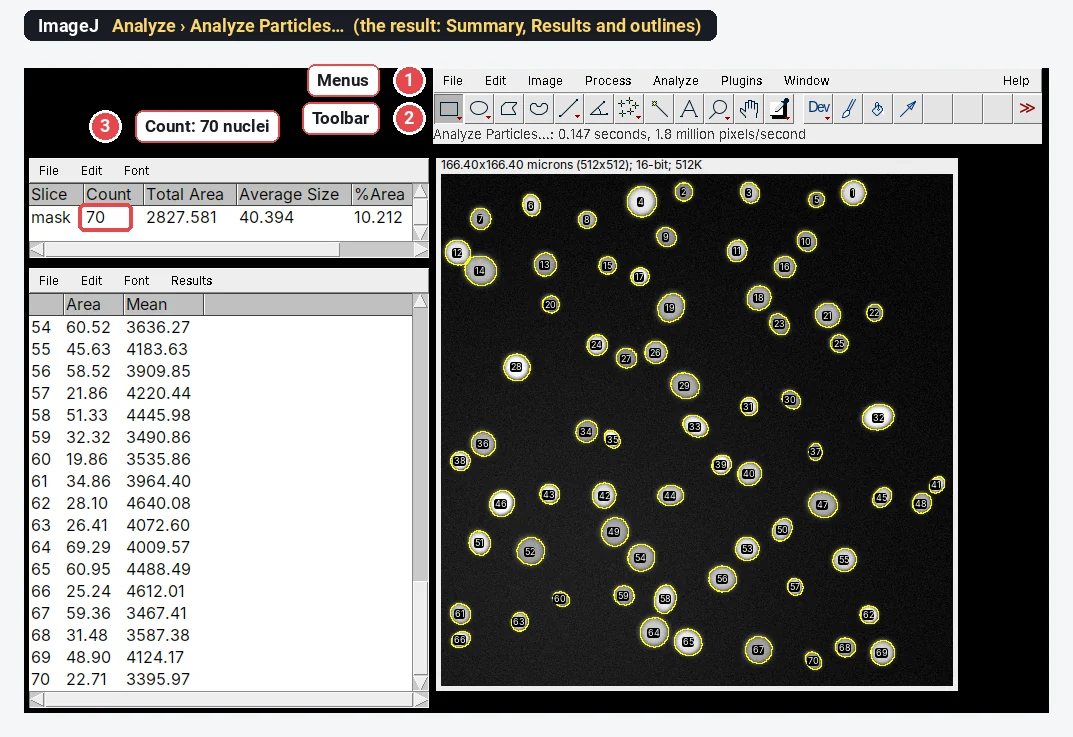
How to use ImageJ: a beginner's tutorial for the 10 everyday jobs (2026)
How to use ImageJ and Fiji: get started, open an image, then 10 everyday jobs (scale, measure, threshold, count, background, blots) with exact menu paths.
How to set the scale and add a scale bar in ImageJ (with a calibration image to practise on)
Set the scale in ImageJ (Analyze › Set Scale) from a micrometer, scale bar or pixel size, add a scale bar, and practise on a free calibration image.